Data Transfer
External Transfer
CSCS currently offers the CSCS Globus online endpoint for uploading and downloading data from and to CSCS:
The recommended way to transfer data externally occurs via the CSCS globus-online endpoint.
- Follow the official get started documentation to login
- in case you don’t have an organisation account, you can just use the option “Sign in with Google”

- in case you don’t have an organisation account, you can just use the option “Sign in with Google”
- Use the file manager to search for an endpoint typing “CSCS”
- Please make sure that the login page belongs to the cscs.ch domain (shown in the URL)
- The CSCS endpoint requires authentication, therefore use your CSCS credentials to log in
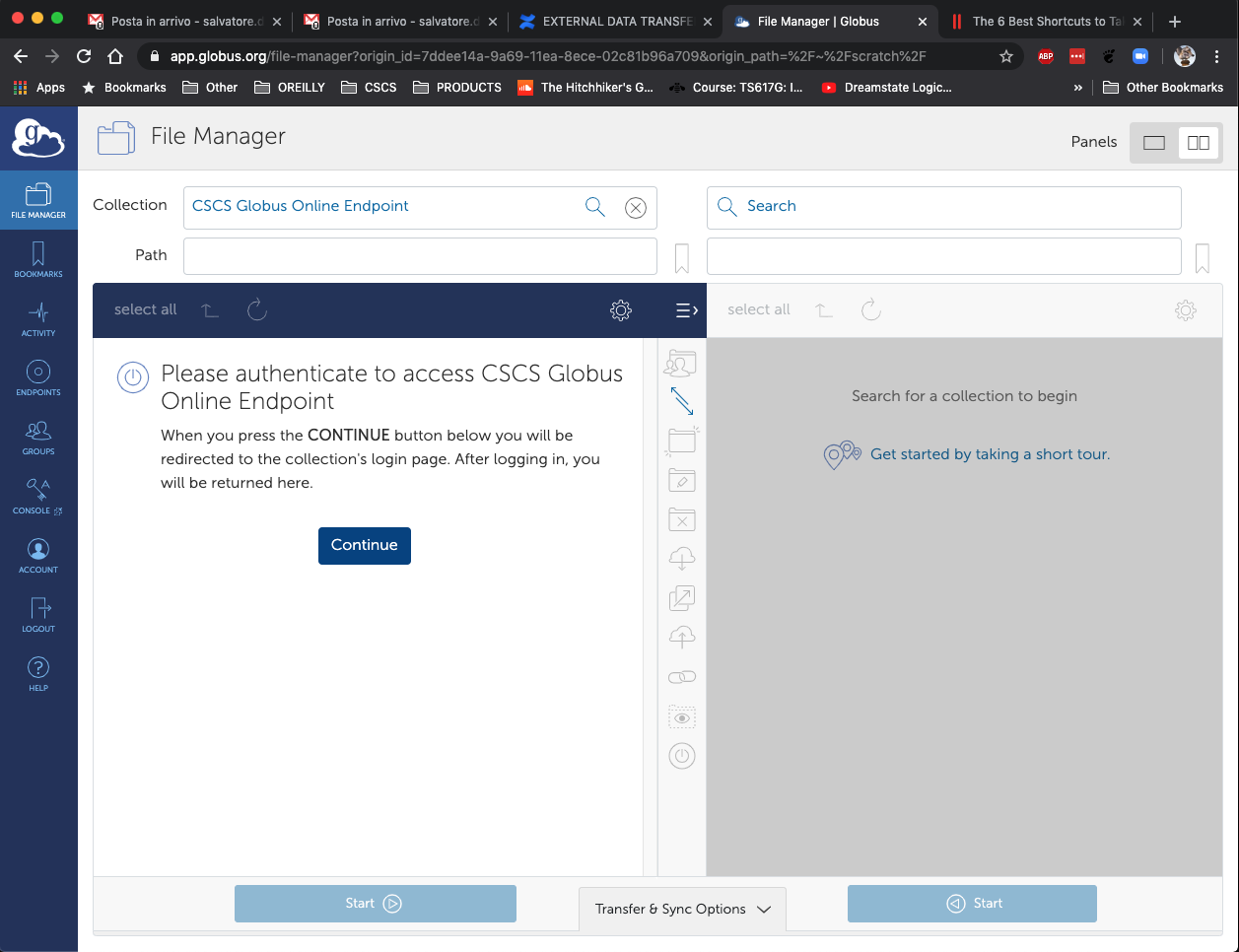
- Once logged in, you can transfer data to and from CSCS.
- if you want to transfer the data to another endpoint, just search for it and transfer the data
- if you want to download the data to your local system, you will need the Globus Connect Personal client: the client will turn your local system into an endpoint, so you will be able to select it and transfer the data.
For more information about Globus Connect Personal, please read the official Frequently Asked Questions.
Currently Globus provide the following mount points at CSCS:
| Mount Point | Description |
|---|---|
/iopsstor/scratch/cscs |
Iopsstor scratch |
/capstor/scratch/cscs |
Capstor scratch |
/ritom/scratch/cscs |
Ritom scratch |
/capstor/store/cscs |
Store |
/vast/users/cscs |
Home |
Internal Transfer
The Slurm queue xfer is available on Alps clusters to address data transfers between internal CSCS file systems.
The queue has been created to transfer files and folders from /users, /capstor/store or /iopsstor/store to the /capstor/scratch and /iopsstor/scratch file systems (stage-in) and vice versa (stage-out).
Currently the following commands are available on the cluster supporting the queue xfer:
You can adjust the Slurm batch script below to transfer your input data on $SCRATCH, setting the variable command to the unix command that you intend to use, choosing from the list given above:
#!/bin/bash -l
#
#SBATCH --time=02:00:00
#SBATCH --ntasks=1
#SBATCH --partition=xfer

command="rsync -av"
echo -e "$SLURM_JOB_NAME started on $(date):\n $command $1 $2\n"
srun -n $SLURM_NTASKS $command $1 $2
echo -e "$SLURM_JOB_NAME finished on $(date)\n"

if [ -n "$3" ]; then
  # unset memory constraint enabled on xfer partition
  unset SLURM_MEM_PER_CPU
  # submit job with dependency
  sbatch --dependency=afterok:$SLURM_JOB_ID $3
fi
The template Slurm batch script above requires at least two command line arguments, which are the source and the destination files (or folders) to be copied.
The stage script may take as third command line argument the name of the production Slurm batch script to be submitted after the stage job: the Slurm dependency flag --dependency=afterok:$SLURM_JOB_ID ensures that the production job can begin execution only after the stage job has successfully executed (i.e. ran to completion with an exit code of zero).
You can submit the stage job with a meaningful job name as below:
# stage-in and production jobs
$ sbatch --job-name=stage_in stage.sbatch \
         ${PROJECT}/<source> ${SCRATCH}/<destination> \
         production.sbatch
The Slurm flag --job-name will set the name of the stage job that will be printed in the Slurm output file: the latter is by default the file slurm-${SLURM_JOB_ID}.out, unless you set a specific name for output and error using the Slurm flags -e/--error and/or -o/--output (e.g.: -o %j.out -e %j.err, where the Slurm symbol %j will be replaced by $SLURM_JOB_ID).
l
The stage script will also submit the Slurm batch script production.sbatch given as third command line argument.
The production script can submit in turn a stage job to transfer the results back. E.g.:
# stage-out
sbatch --dependency=afterok:${SLURM_JOB_ID} --job-name=stage_out \
       stage.sbatch ${SCRATCH}/<source> ${PROJECT}/<destination>
Parallel transfers with rclone
For large transfers — a directory with many files, or a few very large files such as model checkpoints — rclone is often considerably faster than rsync, because it copies multiple files (and multiple chunks of a single large file) in parallel.
It is available on the xfer queue and, like rsync, plugs into the command variable of the stage.sbatch script above.
Both the source and the destination are local file systems here, so no rclone remote needs to be configured.
Set command to an rclone copy invocation, choosing the flags that match your data:
--transfers is how many files are copied at once, and --checkers how many are compared in parallel when deciding what still needs copying.
Raise both for directories that contain many (small) files.
command="rclone copy --multi-thread-streams=4 --multi-thread-cutoff=256M --transfers=4 --progress"
--multi-thread-streams splits each file larger than --multi-thread-cutoff into that many streams copied in parallel, which speeds up a small number of very large files such as checkpoints.
For example, to stage results out from Iopsstor scratch to your project store after a run:
$ sbatch --job-name=stage_out stage.sbatch \
         $SCRATCH/<run-name> /capstor/store/cscs/<customer>/<project>/<run-name>
tuning the parallelism
The xfer queue runs a single node per job, so all of this parallelism happens within one node.
Start from the values above and increase --transfers/--checkers gradually: very high values can overload the file system metadata servers and slow everyone down rather than speed up your transfer.
Add --stats=30s to print throughput while the job runs, and --dry-run to preview what would be copied without moving any data.
what throughput to expect
As an indicative figure, not a guarantee, copying a 1 TB directory from /capstor/store to /iopsstor/scratch with the settings above takes on the order of 5 minutes on Alps (roughly 3 GB/s).
Treat it as an order-of-magnitude check: if your transfer is many times slower, something is usually off, for example too few --transfers/--checkers, a directory of many tiny files, or a busy file system.
Actual throughput depends on the file mix, the flags you choose, and the current load on the file system.